
Full Course
Full tutorials live at moonlearning.io, including a step-by-step guide to building and extending this team: moonlearning.io/agenticteam.
This soft agent team was built by Christine Vallaure (christinevallaure.com).
Quick Self-Set Up
This is a folder, not an app. Nothing to install beyond what you might already have. Once it's connected, you'll have a four-person AI team that knows your project, writes in your voice, and handles the work you'd rather not do yourself.
🛠️ What you need
A Claude Pro account at claude.ai and the Claude desktop app on your Mac or PC. Inside the app, look for Cowork mode — that's what lets Claude work directly with files on your computer. You'll need that turned on.
👥 Meet the team
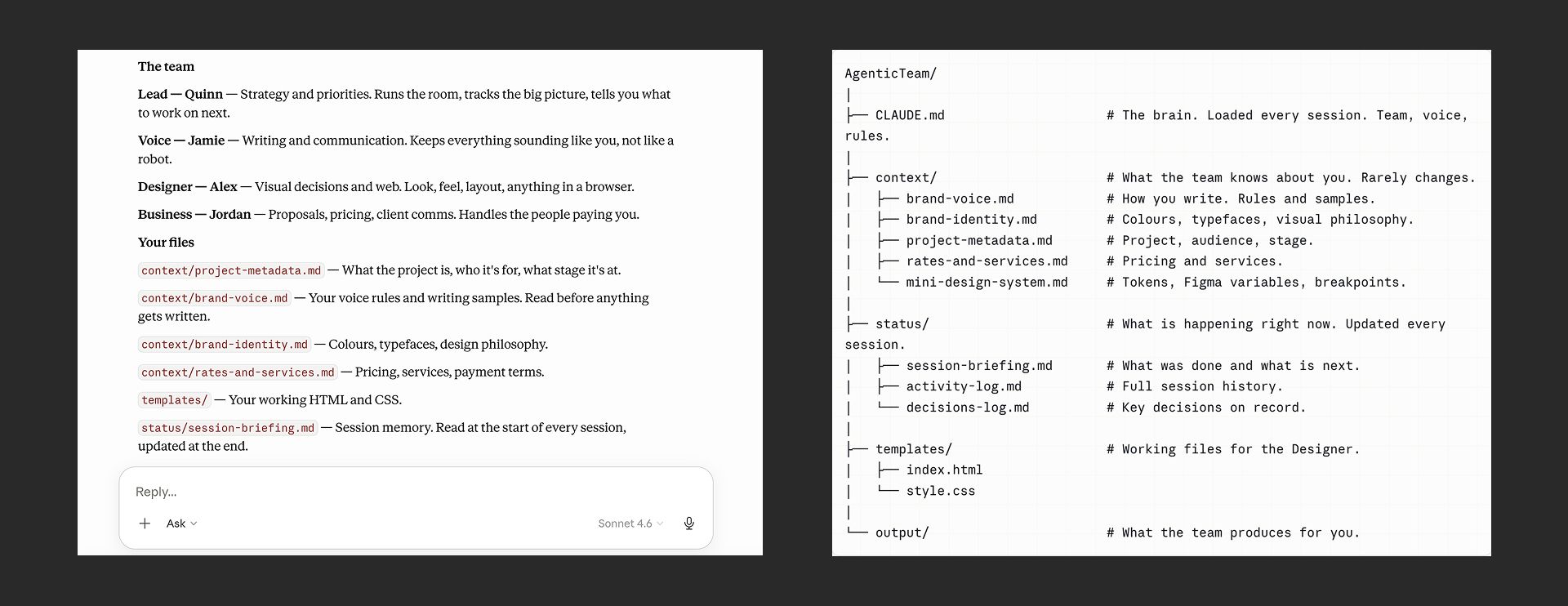
🧭 Quinn — Lead & Strategist Runs the room. Tracks priorities, synthesises everyone's input, and tells you what to work on next. When you don't know where to start, start here.
✍️ Jamie — Voice & Writing Everything that gets written passes through Jamie. They know how you write — your rhythm, your tone, the words you'd never use — and make sure nothing sounds like it came from a robot.
🎨 Alex — Design & Web Visual decisions, layout, anything that lives in a browser or Figma. Alex knows your brand's look and feel and works directly with your design files.
💼 Jordan — Business & Client Comms Proposals, pricing, client emails, invoices, scope conversations. Jordan handles everything that isn't the actual work — and reads situations from the client's perspective, not just yours.
📁 Setting it up in Cowork
Download the folder and put it somewhere you'll remember (Dropbox, your desktop, wherever). Open Cowork and create a new project. When it asks you to connect a folder, point it at the AgenticTeam folder you just downloaded. That's it.
💬 How it works
Just chat. There's no interface to learn and no buttons to click. You talk to the team the way you'd message a colleague. Be messy, casual, honest, seriously, it is what works best. They read what you've given them and get to work.
The folder contains a file called CLAUDE.md. Think of it as the team's briefing document. It tells Claude who each team member is, what they're responsible for, which files they should read, and how they should behave. You never need to open it or touch it, it runs in the background every session, automatically. It's what makes your team feel consistent every time you come back. Click on it, and you see how I made it, it's written in markdown, which is just text.
📂 The context files
The folder has a few files that teach the team about you. None of them is filled in yet; you can do that by dropping information into the chat, just tell the team to help you.
brand-voice.md — Paste in a few lines of your writing. An email, a paragraph from something you've published, a message you're proud of. That's all Jamie needs to make sure everything sounds like you. You still need to do the writing, and Jamie just helps you like a proofreader.
rates-and-services.md — Tell Jordan what you charge and what you offer. As rough as you like: "I do brand identity, websites, and strategy. Day rate is £900, projects from £4k." She'll save it and use it whenever pricing comes up. You can also just drop in pricing tables or old briefs.
project-metadata.md — Tell Quinn who you are, what you're working on. Who it's for, what stage it's at, what the goal is. One paragraph is enough to get started. You can use this for single projects or for example an entire setup as a freelancer (this is how I use it, running moonlearning.io solo)
📤 Where files go
When the team creates something, a proposal, a draft, a document, a report, it saves it directly into your folder so you can open it straight from your computer. Deliverables go into the output/ folder. Context files like your voice samples and rates live in context/. Session notes are in status/.
You'll also get a clickable link in the chat the moment a file is ready. Click it and it opens. No downloading, no hunting through folders.
🎨 Connecting your Figma files (for Desingers only)
If you use Figma, you can connect it so Alex can read your files directly (components, variables, design tokens, the lot) without you having to paste anything manually.
Install the Figma Console MCP by Southleft and follow the setup guide at docs.figma-console-mcp.southleft.com/setup. Once it's connected, just share a Figma link in the chat and Alex picks it up from there.
There's a little more to it if you're interested in setting up scalable, agentic workflows as a designer using Figma. Check out moonlearning.io, where I teach all of this in depth.
🧠 Memory and continuity
The team gets smarter the more you use it. Two things make that happen.
Session notes — at the end of each session, Quinn will ask if you want to log what was done and what's next. Say yes and it saves to a file in your folder. When you come back, the team reads it before anything else. No recap needed, no starting from scratch. The reading is automatic. The saving just needs a quick yes from you before you close.
Background memory — Cowork also quietly builds a picture of you over time. Your preferences, how you like to work, things you've corrected. This runs in the background across all your sessions and gets sharper the longer you use it.
It is still not perfect, so you can also just tell the team to update their memory once you are finished.
👋 When you're ready
Open your Cowork project and say hello. Then just start talking. Tell them what you're working on, drop in your writing samples, share your rates. The more context you give them, the more useful they get.
You think and write. They handle the rest.
Full tutorials live at moonlearning.io, including a step-by-step guide to building and extending this team: moonlearning.io/agenticteam.
This soft agent team was built by Christine Vallaure (christinevallaure.com).